How to Add An Image to Your Email Signature
HubSpot's Email Signature Generator creates professional email signatures with correctly formatted, reliably hosted images – built to display consistently in Gmail, Outlook, Apple Mail, and on mobile.

How to Add An Image to Gmail Signature
1. Access Gmail settings: Log into Gmail and click the gear icon in the top right corner

2. Open all settings: Select "See all settings" from the dropdown menu

3. Navigate to signatures: In the "General" tab, scroll to the "Signature" section
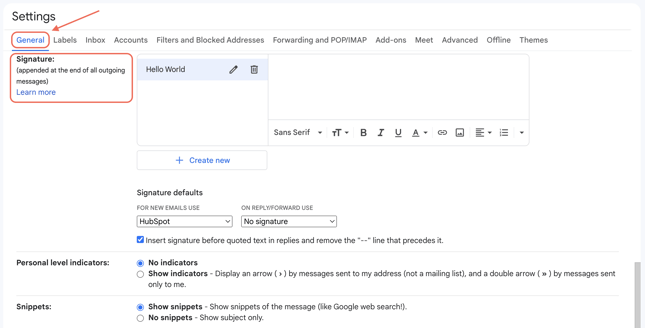
4. Select signature to edit: Choose existing signature or click "Create new" for new image signature
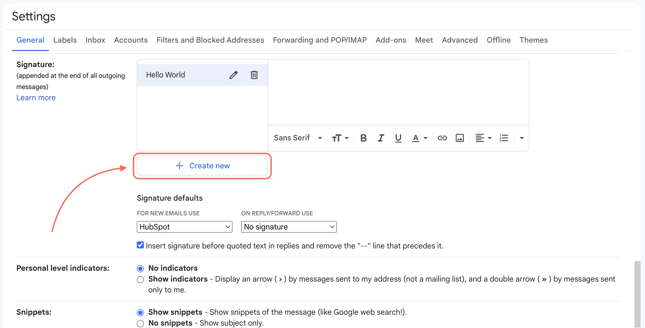
5. Position image cursor: Place cursor where you want the email signature picture to appear

6. Insert image element: Click the "Insert Image" button in the signature toolbar
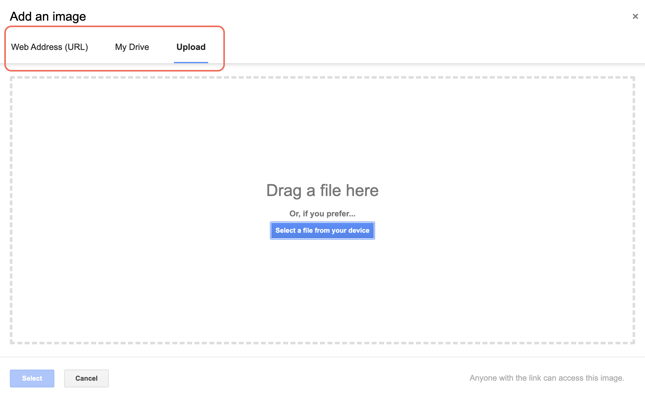
7. Upload image file: Choose "Upload" → "Select a file from your device" or use "Web Address (URL)" for hosted images
The best size for email signature image varies by email client and requires proper file compression techniques:
Standard email signature image dimensions: The ideal email signature picture size ranges from 300-400 pixels width and 70-100 pixels height for optimal display across all email platforms. These dimensions ensure professional appearance without overwhelming signature content.
Gmail signature image size specifications: Gmail-optimized email signature photos should measure 200 pixels maximum width and 80 pixels maximum height. Gmail's compact layout requires smaller image dimensions to maintain professional appearance and mobile compatibility.
Email signature banner dimensions: When using banner-style email signature images, maintain maximum width of 700 pixels and maximum height of 100 pixels. Banner signatures work effectively for promotional campaigns or brand reinforcement initiatives.
Logo size for email signature optimization: Company logos in email signatures should measure 150x50 pixels maximum to ensure readability while maintaining professional proportions. Larger logos may appear dominant and reduce signature professionalism.
Email Signature File Optimization: Optimal email signature image file size: Maintain email signature picture file sizes under 15-20KB for reliable delivery and fast loading across all email clients. Larger files may trigger spam filters or cause display delays for recipients.
Image compression for email signatures: Use tools to compress email signature photos without quality loss. Proper compression ensures fast loading while maintaining visual clarity across desktop and mobile email viewing.
File format recommendations: PNG format works best for email signature images due to transparency support and consistent cross-platform rendering. JPEG format acceptable for photographs, but PNG preferred for logos and graphics with text elements.
Professional headshot optimization: A headshot in email signature builds trust and personal connection with email recipients. Use high-quality professional photographs with neutral backgrounds for email signature pictures. Headshots should show clear facial features, professional attire, and a confident expression.
Company logo integration: Email signature images featuring company logos reinforce brand identity while maintaining professional communication standards. Ensure logo colors and design elements align with established brand guidelines for consistent representation.
Promotional image strategies: Temporary promotional email signature photos can highlight special offers, events, or product launches. Update promotional images quarterly to maintain relevance and avoid signature staleness.