How To Create A Hyperlink In Outlook
Learn how to insert a hyperlink in Outlook across all platforms in 2026, with step-by-step instructions for web, desktop, and mobile.

Outlook.com transforms selected content into an Outlook hyperlink through its “Insert Link” feature, supporting text, images, and mixed content formatting. Outlook.com automatically validates URLs, supports relative links within Microsoft domains, and preserves formatting when converting rich text content to hyperlinks.
Step-by-step process:
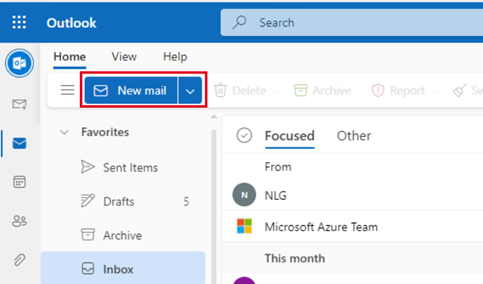
1. Access email composer: Navigate to Outlook.com, sign in, and click "New Mail" (top-left corner) to open the composition window.
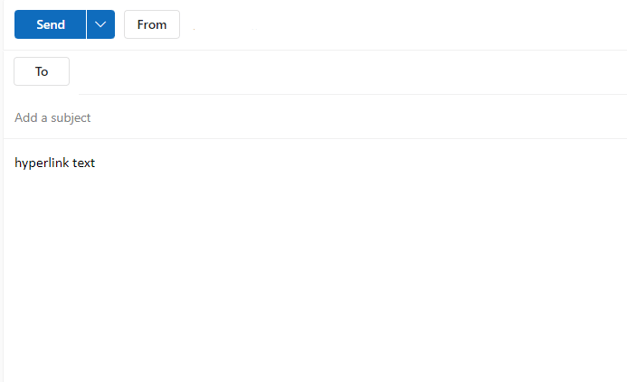
2. Add linkable content: Type or paste the text, sentence, or paragraph you want to convert into a clickable link directly in the email body.
3. Select target content: Highlight your content using click-and-drag with your mouse or Shift+Arrow keys for precise keyboard selection.
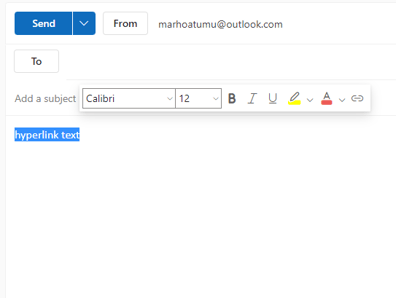
4. Access link menu: Click "Insert" from the formatting toolbar, then select "Link" from the dropdown submenu that appears.
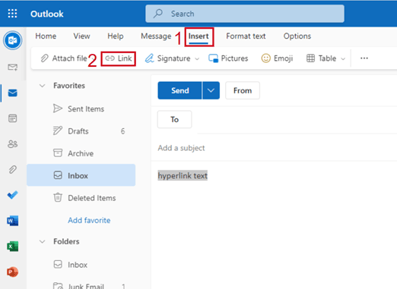
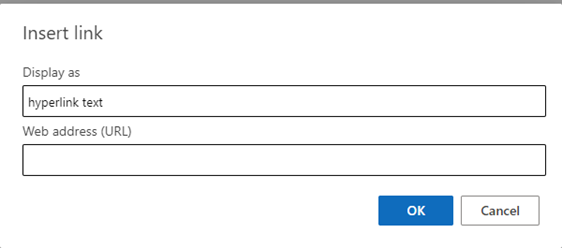
5. Configure hyperlink: In the "Insert Link" dialog box, verify your selected text appears correctly, then enter the complete target URL (including https://) in the web address field.
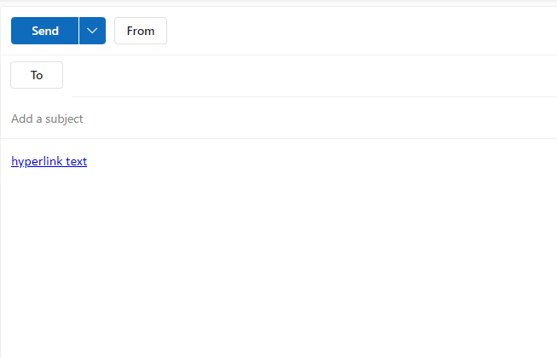
6. Finalize creation: Click "OK" to convert your selected content into an active hyperlink, indicated by blue underlined text.
Renaming a hyperlink in Outlook enhances email professionalism and click-through rates by editing raw URLs into descriptive, action-oriented text. Learn how to edit a hyperlink in Outlook on three platforms: Outlook.com, Outlook Desktop, and Outlook mobile.
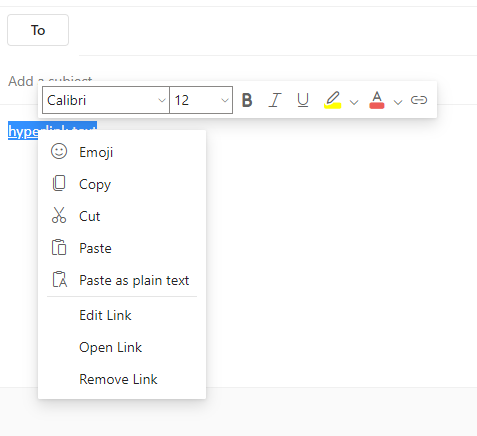
1. Right-click existing hyperlink to access the context menu
2. Select "Edit Link" from available options
3. Modify the "Text to display" field while keeping URL unchanged
4. Click OK to apply new display text
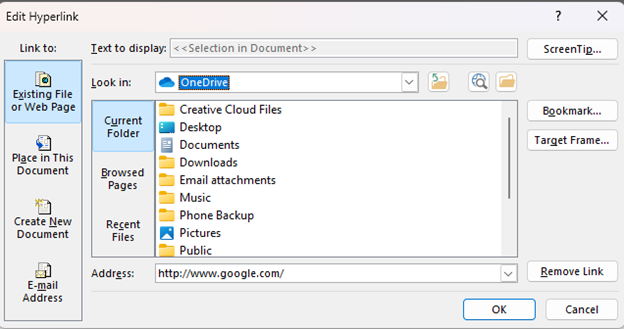
1. Right-click hyperlinked content within your email
2. Choose "Edit Hyperlink" from the expanded menu
3. Update "Text to display" field with preferred wording
4. Preserve original URL in Address field
5. Click OK to confirm changes
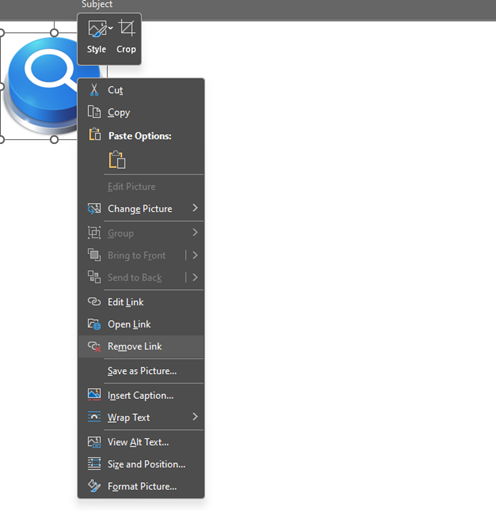
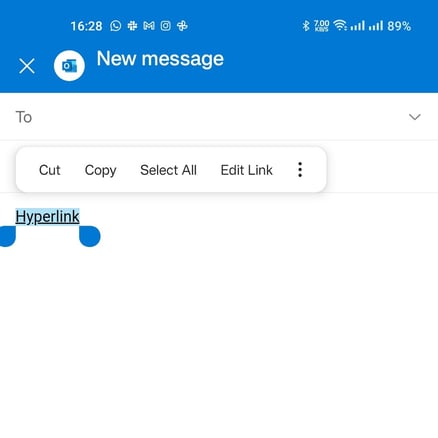
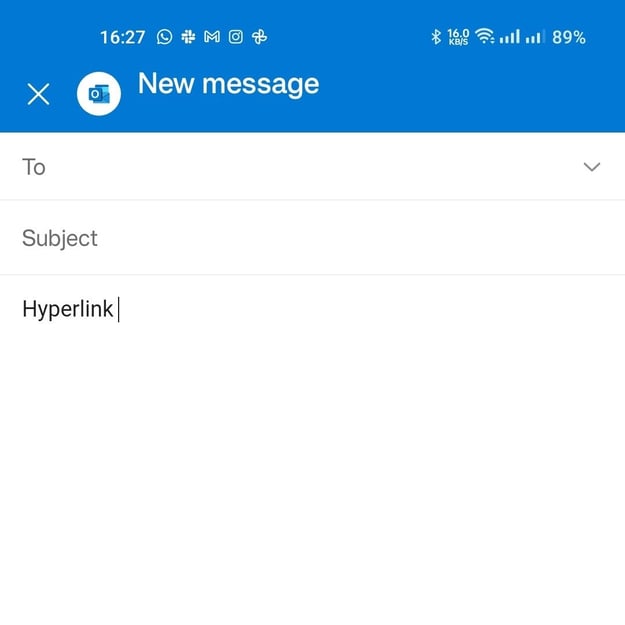
1. Long-press existing hyperlink until menu appears
2. Select "Edit Link" option
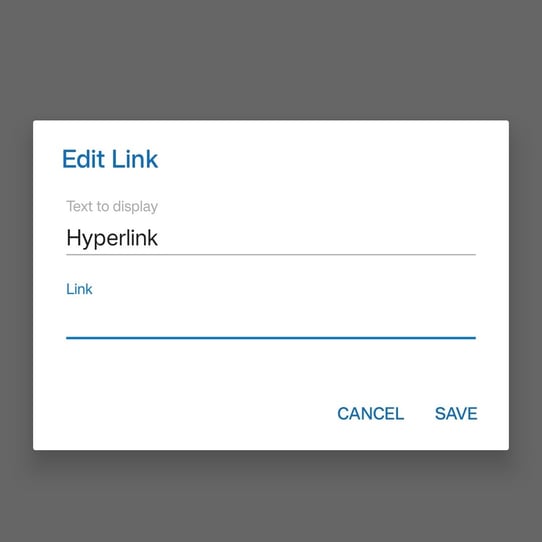
3. Tap display text field to modify visible content
4. Ensure Link field maintains correct destination
5. Save changes to update hyperlink appearance

Transform your email signature into a powerful networking tool with HubSpot's free Email Signature Generator! Create professional signatures with integrated hyperlinks to your website, social profiles, and booking calendars in minutes.
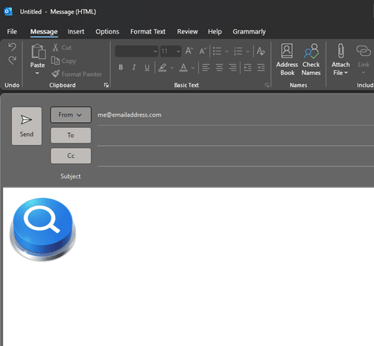
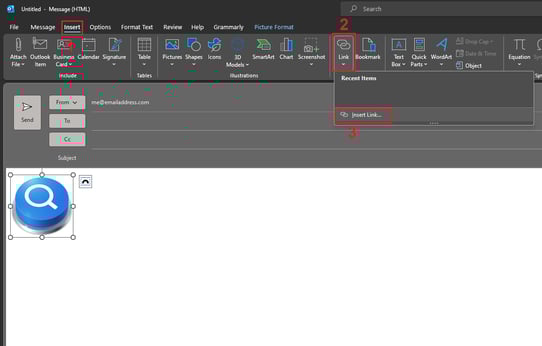
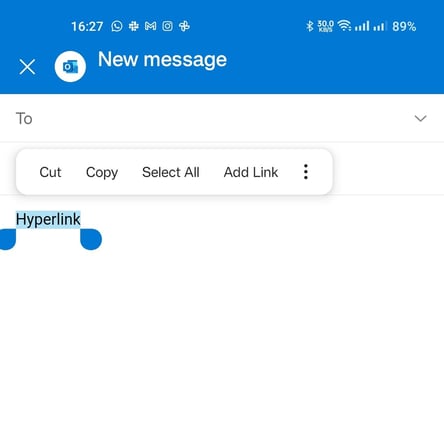 3. Configure URL: In the simplified link dialog, paste or type your destination URL in the "Link" field.